Live streaming with Semirprod
Complete guide to streaming from your phone to OBS Studio and running your streams from the Semirprod dashboard.
How it works
Semirprod sends the feed from your phone to OBS Studio and lets you control it from your Semirprod dashboard. From OBS Studio, you then stream to your usual platform.
Your phone
Sends the feed to Semirprod
OBS Studio
Receives the feed through the Flux Semirprod source (called Semirprod Live Source in earlier versions of the plugin)
Platforms
Streaming set up in OBS Studio
Requirements
On your computer (OBS)
- OBS Studio installed (download it here)
- A Semirprod account with live access
- A Windows computer
On your phone
- Prism Live, Streamlabs, or any app that supports Custom RTMP
- A stable 4G/5G or Wi-Fi connection (at least 5 Mbps upload recommended)
1. Create a stream in the dashboard
Before installing anything, create your stream in the dashboard. That's where you'll find the settings to enter in your mobile app.
- Log in to your Semirprod dashboard
- Go to your organization's Live section
- Click Nouveau flux (New stream)
- Give it a name (e.g. Main phone)
- Your stream's connection settings are generated automatically
- Keep them open to set up your phone
Never share your connection settings
Anyone who has them can send a stream in your name. If you think they've been leaked, regenerate them from the dashboard.
2. Set up your phone to stream
With Prism Live (iOS / Android)
- Open Prism Live
- Tap + or New stream
- Select Custom RTMP
- Stream URL: the value shown in your dashboard
- Stream key: the value tied to your stream
- Tap Save, then Start streaming
Lower the latency
In Prism Live's advanced settings, set latency to Low to cut the delay between your phone and OBS.
With Streamlabs (iOS / Android)
- Open Streamlabs
- Tap Go Live
- Select Custom RTMP
- RTMP URL: the value shown in your dashboard
- Stream Key: the value tied to your stream
- Tap Go Live
With any other app (Custom RTMP)
Any app that accepts a custom RTMP destination works (Larix Broadcaster, OBS Camera, etc.). Use the settings shown in your dashboard:
- URL: the value tied to your stream
- Key: the value tied to your stream
- Resolution: 1920x1080 or 1280x720
- Bitrate: 2500 to 6000 kbps depending on your connection
- FPS: 30 or 60
3. Install the OBS plugin
You install the plugin straight from the dashboard.
- In the dashboard, go to the Live section
- Click Installer le plugin OBS (Install the OBS plugin)
- The installer downloads and installs the plugin for you
- Restart OBS Studio
- A new Semirprod menu appears in the menu bar, and a Semirprod, Statut du live (live status) dock is added on the right
If the installation doesn't work
Run the installation again from the dashboard. If the problem persists, contact support.
4. Connect the plugin to your account
You connect through your browser, automatically.
- In OBS, click the Semirprod → Semirprod Studio menu
- A floating window opens: this is the main control panel
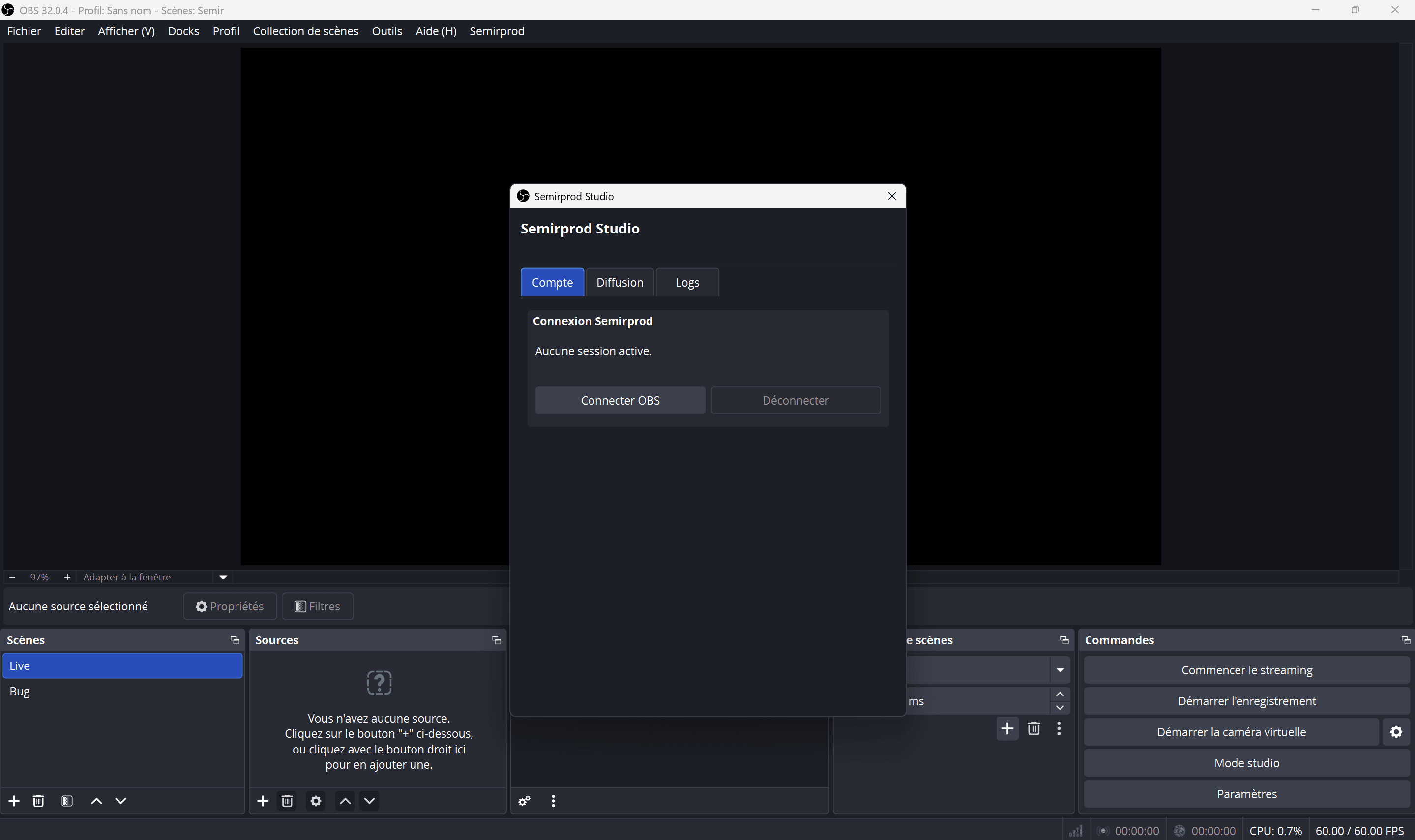
- Click Se connecter (Log in)
- A web page opens in your browser
- Log in to your Semirprod account if needed
- Click Autoriser OBS (Authorize OBS)
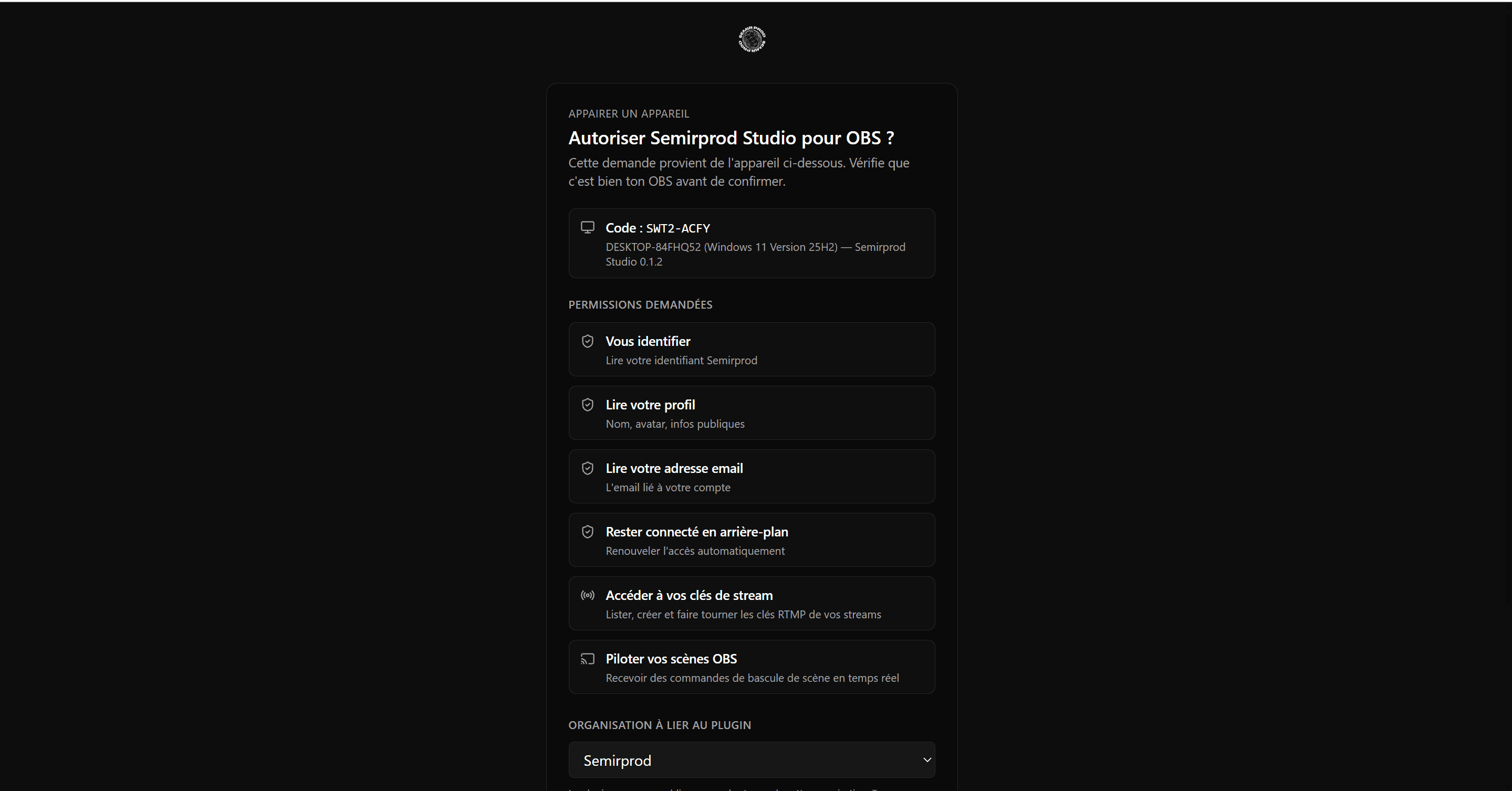
- The plugin connects automatically: go back to OBS, your name and email now show in the dock
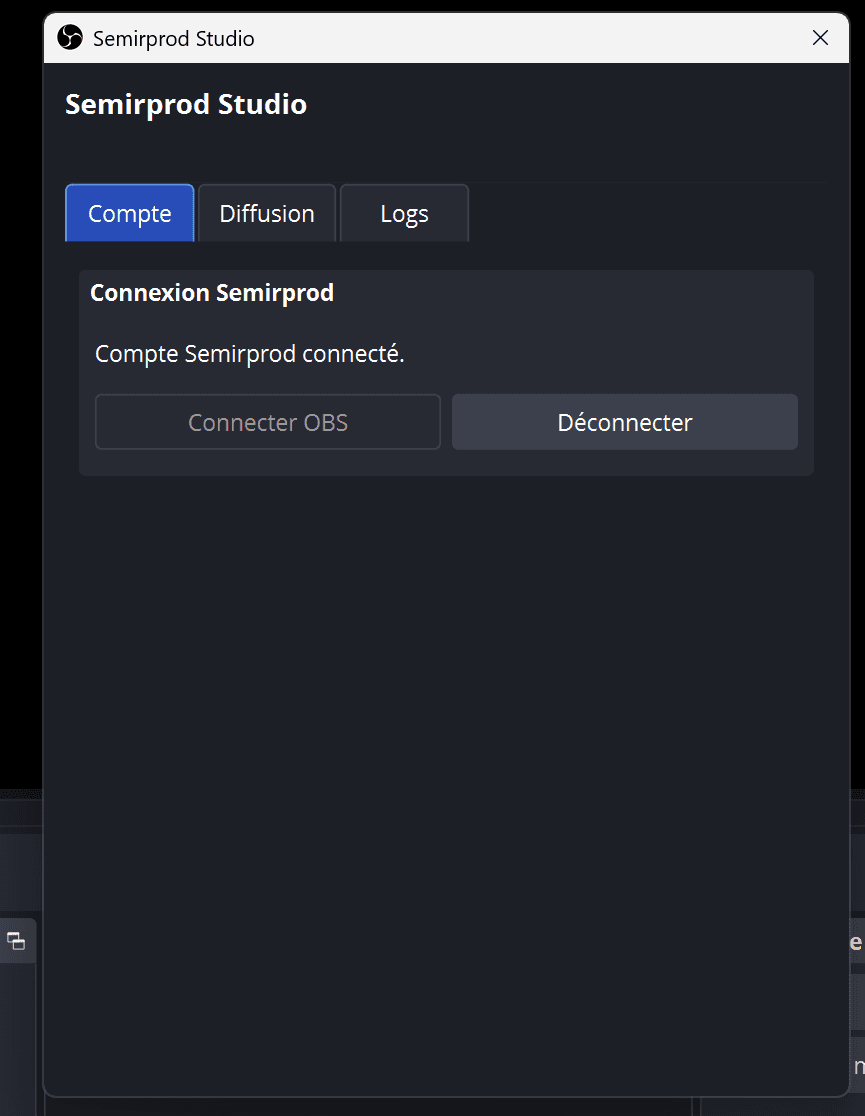
If it doesn't connect on its own
In rare cases, the page shows a 6-digit code. Enter it in the OBS dock (the J'ai un code button, "I have a code"), then click Associer (Link).
Stays connected
You don't need to do this again each time you restart OBS: the plugin stays connected.
5. Pick a stream in the dock
Once you're connected, the dock lists the streams you created in your dashboard.
- In the Semirprod Studio dock, open the Sélectionner un flux (Select a stream) dropdown
- Pick the stream you created in step 1
- Click Appliquer (Apply)
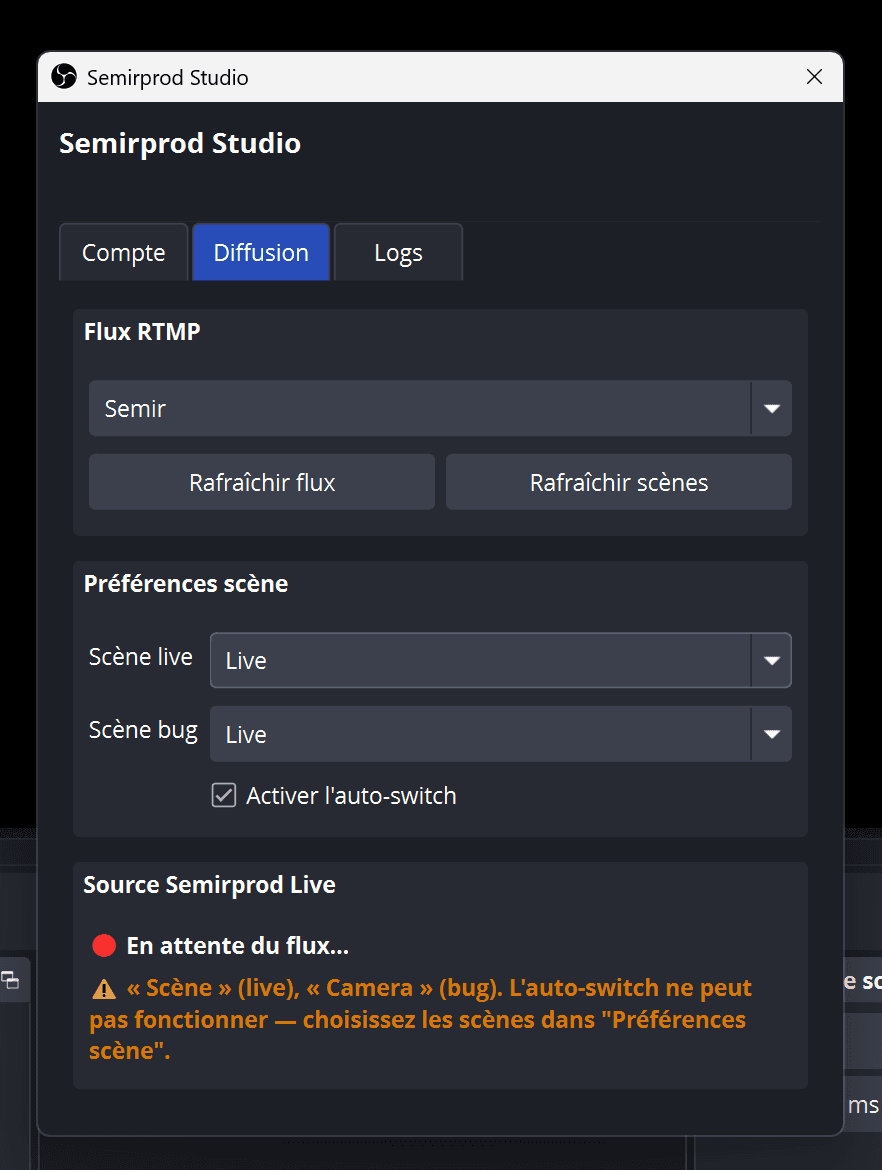
What happens automatically
- The plugin applies the settings of the selected stream
- It stays in sync with your dashboard to receive your commands
6. Add the "Flux Semirprod" source
This is the source that shows your phone's feed in OBS. Without it, you won't see anything.
- In OBS, create a scene named
live - In the Sources panel, click the + button
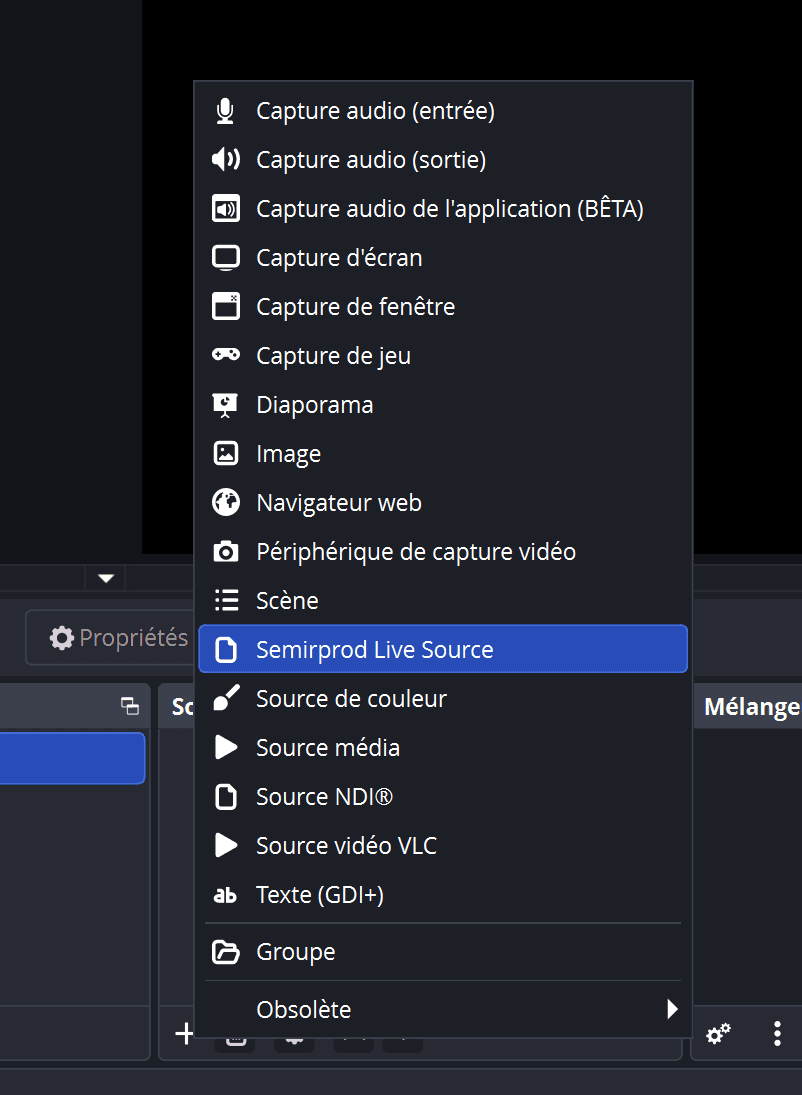
- Select Flux Semirprod in the list
- Give it a name (e.g. Phone feed) and confirm
- Right-click the source → Transform → Fit to screen
It won't work without this
The "Flux Semirprod" source must be placed in your live scene. Without it, no feed is displayed and the stream won't work.
Source status
The Semirprod, Statut du live (live status) dock always shows whether the source is receiving the feed:
- Green: the feed is coming in correctly
- Red: the feed is down (phone disconnected or not streaming)
7. Set up the live and bug scenes
The plugin can switch automatically between your live scene and a backup scene when the feed drops. It doesn't only react to a full cut: the feed is monitored continuously, and a collapsing bitrate, a frozen image or repeated micro-drops are enough, without waiting for the connection to go down.
This automatic switch follows the main stream, the one selected in the plugin. Your other devices are monitored the same way and their status is shown, but they never change the scene on their own: with several cameras, you're the one who decides, and a struggling backup camera shouldn't get to choose what goes on air.
The "live" scene
- Make sure you have a scene named
live - Add the Flux Semirprod source
- Add your overlays: chat, alerts, logo, webcam, etc.
The "bug" scene (backup)
- Create a scene named
bug - Add an image or a message such as "Offline, back in a moment"
- You can also add some waiting music
Turn on auto-switch
- Open the Semirprod Studio dock
- Under Scene Live, select
live - Under Scene Bug, select
bug - Check Auto-switch
Safety
Auto-switch only kicks in if you're already on the live or bug scene. If you're on another scene (e.g. intro), the plugin does nothing, so it never interrupts you.
8. Use the live dashboard
The Stream Deck
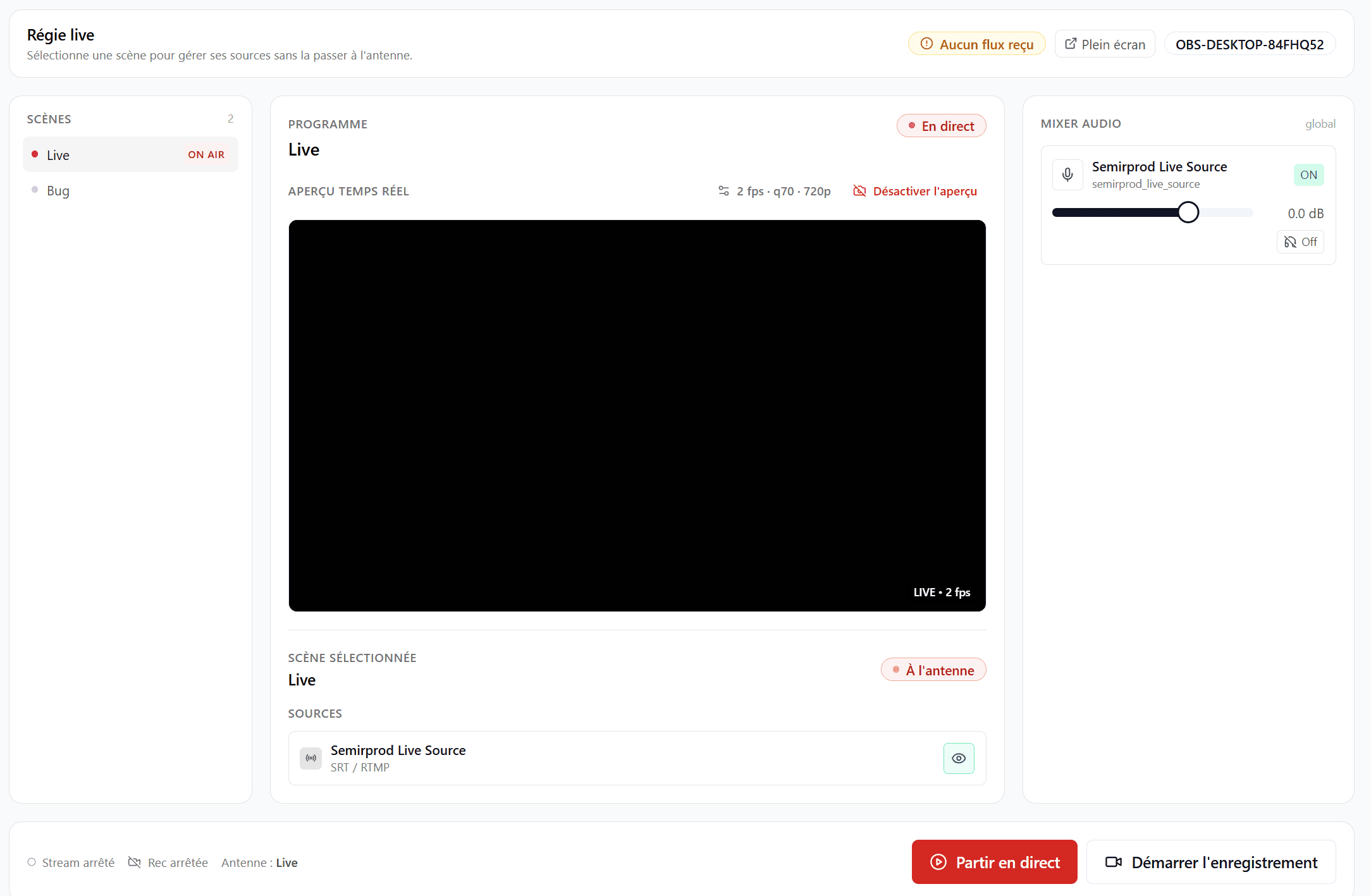
The main control view shows:
- Video preview: what OBS sees, in real time
- Bitrate: a graph of your phone's upload rate
- Scene buttons: switch manually between
liveandbug - Stream control: start or stop streaming and recording
- Source visibility: show or hide sources in each scene
- Audio mixer: mute, volume, monitoring
Remote controls
Every action in the dashboard is sent to the OBS plugin in real time. If the plugin is disconnected, the buttons are disabled.
9. Troubleshooting
"The plugin doesn't show up in OBS"
- Close OBS Studio and open it again
- Run the installation again from the dashboard
- Contact support if the problem persists
"The Flux Semirprod source is black"
- Check that your phone is actually streaming (red button active)
- Check in the dock that you've selected a stream
- Check that the key on your phone matches the stream selected in the dock
- Wait 5 to 10 seconds, the feed sometimes takes a moment to start
"My phone isn't sending the feed"
- Check the settings shown in the dashboard, with no extra spaces or line breaks
- Try another network (4G instead of a company Wi-Fi, which sometimes blocks RTMP)
- Check that the stream is Actif (active) in the dashboard
"Auto-switch doesn't work"
- Check that the scene names in the dock match the names in OBS exactly
- Check that the Flux Semirprod source is in the
livescene - Check that Auto-switch is ticked in the dock
- The switch only works when you're on
liveorbug
"The feed stutters or drops"
- Lower the bitrate on your phone (6000 → 3000 kbps)
- Switch to 720p30 instead of 1080p60
- Check your Wi-Fi or 4G signal quality
- In Prism Live, turn off network stability
Need help?
Reach support through the contact page or on Discord. Have ready:
- A description of the problem and the step you're on
- A screenshot if you can
- Your organization's name
10. Glossary
| Term | Definition |
|---|---|
| RTMP | The format a mobile app uses to send a stream. |
| Stream Key | A confidential setting tied to your stream. Never share it. |
| Flux Semirprod | Custom OBS source that shows the feed from your phone. |
| 'live' scene | OBS scene that holds your feed and your overlays. |
| 'bug' scene | Backup scene shown when the feed drops. |
| Auto-switch | Automatic switching between live and bug based on the feed's health. |
| Bitrate | The video stream's data rate (kbps). The higher it is, the better the quality. |